Yes. Google Drive connects to AI tools three ways: a live per-user connector, an admin-managed sync that indexes files for search, or manual upload. Pick the mode, read the permission scopes, then test on a low-risk folder.
Does Google Drive work with AI tools? What "connected" really means
Drive plugs into NotebookLM, ChatGPT, Claude, Gemini and a long tail of smaller apps. The button usually says "Connect Google Drive." That label hides three very different arrangements, and the difference decides what a model can read, when, and on whose behalf.
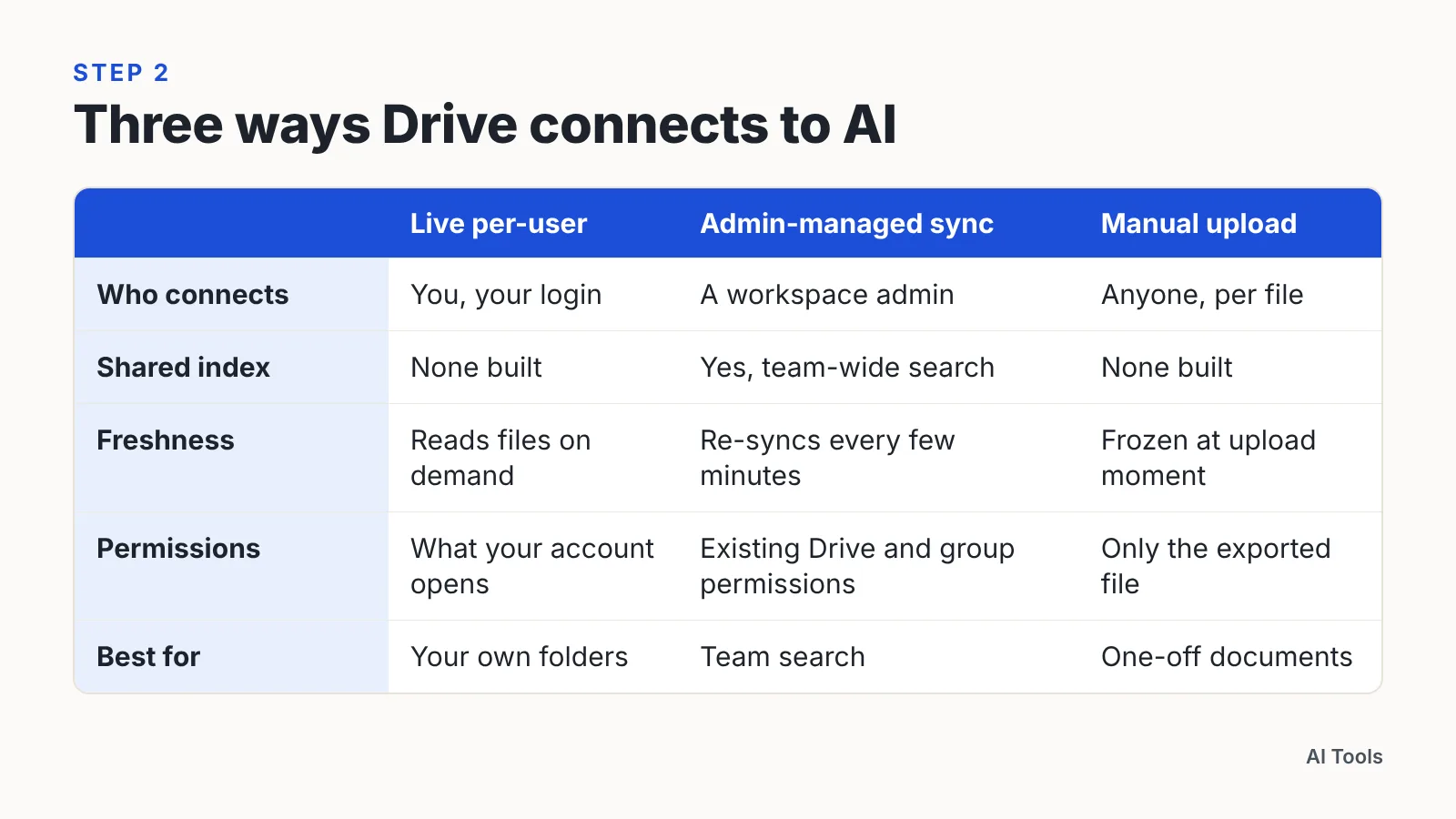
The three modes, in plain terms:
- Live per-user access — the tool opens files on demand using your own Google login. Nothing is copied into a shared index.
- Admin-managed sync — a workspace admin connects Drive once, and files are indexed so the whole team can search them.
- Manual upload — you export a file and drop it in. The link to Drive ends at that moment.
The OpenAI Help Center states that connecting Google Drive to ChatGPT with a personal account gives only live access to files and does not build a searchable synced index. That single distinction explains most confused expectations. If a colleague says "the AI can’t find our pricing doc," the usual cause is a live connector where someone expected a team-wide index.
Before you evaluate any vendor, ask three questions: which mode is this, is the index per-user or shared, and can the connector write as well as read.
Step 1 — Map which Drive content the AI actually needs (and what must stay out)
Time: 45–60 minutes. You need: a list of your top-level Drive folders, shared drives included, and whoever owns HR and legal data.
Write two lists before you open any settings page. The first is the allowed list: research notes, published marketing copy, product docs, meeting transcripts, support macros. The second is the never list: payroll and HR files, unredacted customer records, signed contracts under NDA, credentials, and anything about an unannounced release.
According to NotebookLM Help, each source on the free tier can hold up to 500,000 words or 200MB for uploaded files, with a maximum of 50 sources per notebook. Limits like that force a choice you should be making anyway — a curated folder beats the whole drive.
Watch two Drive quirks while you map. Shortcuts point to files you may not own, so a tidy-looking folder can pull in someone else’s confidential sheet. Shared drives also carry group-level membership, which means a connector scoped to your account may reach far more than the folders you personally created.
Finish by moving anything from the never list out of the folders you plan to expose. Relocating files is faster than fighting permission edge cases later.
Step 2 — Choose your connection method: live connector, admin-managed sync, or manual upload
Time: 20 minutes to decide. You need: your plan tier, your admin’s availability, and the two lists from Step 1.
Match the method to the job, not to whichever button appears first.
| Method | Best for | What the AI can reach | Main trade-off |
|---|---|---|---|
| Live per-user connector | One person researching their own files | Only what that Google account can already open | No team-wide search; results vary by person |
| Admin-managed sync | Team knowledge search across shared drives | Indexed files, filtered by existing permissions | Needs admin setup and ongoing governance |
| Manual upload | Sensitive one-off analysis | Exactly the file you uploaded, nothing else | Goes stale; you re-upload after every edit |
NotebookLM Help states that files imported into NotebookLM from Google Drive stay current automatically, re-syncing every few minutes rather than staying frozen at import time. Freshness like that is the main argument against manual upload for living documents such as roadmaps or pricing sheets.
For shared search, permissions matter more than features. The OpenAI Help Center notes that with ChatGPT’s administrator-managed Google Drive sync, existing Drive file and group permissions still control which indexed results each workspace member can see. That is the behavior you want: the AI inherits your access model instead of inventing a new one.
Step 3 — Connect the account and read the permission scopes before you click Allow
Time: 15 minutes for a personal connector, half a day for an admin sync. You need: the right Google account, and admin rights if you are doing a workspace-wide setup.
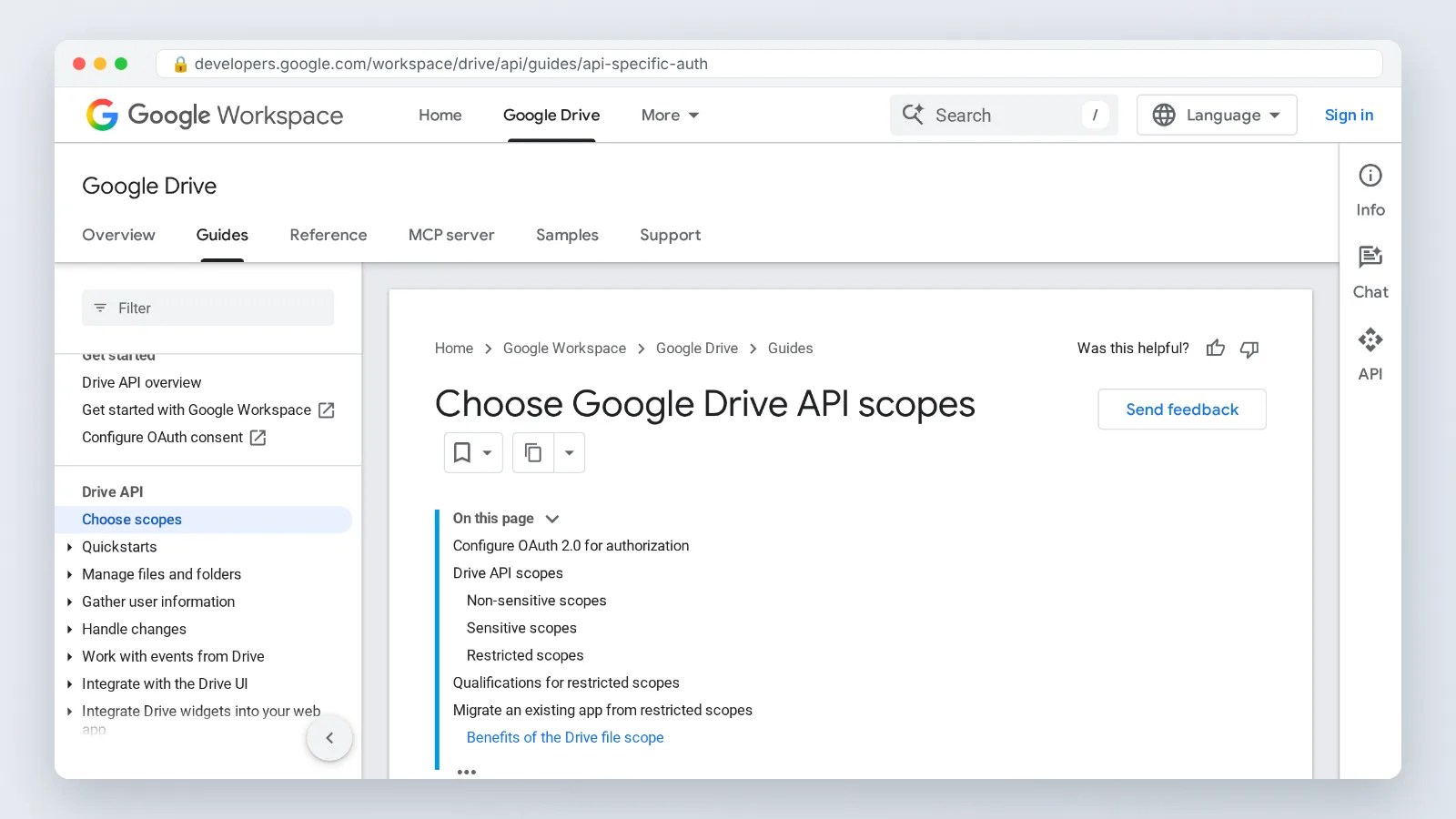
The consent screen is the only moment you see the real scope. Read every line. "See, edit, create and delete all of your Google Drive files" is a different world from "view files you open with this app."
Write access deserves a deliberate decision. Claude.ai Documentation states that the Google Drive connector is not read-only: Claude can search Drive, read the files it finds, and also create new files there. Useful for drafting, risky if nobody agreed to a bot adding documents to a shared drive.
Scope also depends on whose account you use. Claude.ai Documentation explains that the Drive connector is scoped per user, so each person authenticates with their own Google account and Claude can only reach files that account can already open. Connect with a personal account that happens to sit in six shared drives, and you have quietly widened the blast radius.
Admin-managed setups take more plumbing. The OpenAI Help Center says that setting up ChatGPT’s synced Google Drive app for Business and Enterprise requires a Google service account plus an admin account configured with read-only Drive access. Budget time for your IT admin rather than attempting it alone at 5pm on a Friday.
Step 4 — Test search and summaries on a low-risk folder and check the citations
Time: 30 minutes. You need: one folder of non-sensitive files whose contents you already know well.
Start with a known-answer test. Ask a question where you can recite the correct answer from memory, then compare word for word. Vague praise for the output is not a test.
Run four checks on the first session:
- Citation check — open each cited file and confirm the quoted line actually exists there.
- Boundary check — ask about a document you should not have access to, and confirm the tool returns nothing.
- Freshness check — edit a connected file, wait, then ask again and see whether the answer updates.
- Summary fidelity check — have the author of a document read the AI summary and flag what it got backwards.
Pay attention to confident summaries of files the tool never opened. That is the failure pattern worth catching early, because it reads perfectly and sends people to meetings with invented numbers.
Keep notes on which file types behaved badly. Scanned PDFs, slide decks with text in images, and spreadsheets with merged cells are the usual offenders, and knowing that shapes what you ask your team to store.
Step 5 — Set review, retention and revocation rules so access doesn’t drift
Time: one hour to write, 15 minutes per quarter to run. You need: your Google account connections page, your AI tool’s admin console, and a calendar reminder.
Access granted for a project outlives the project unless someone kills it. Put a date on the connection the day you create it.
Four rules worth writing down:
- Owner — one named person per connector, listed by job title, not "the team."
- Review cadence — a quarterly pass over which accounts and folders are connected.
- Offboarding — revoking AI connectors joins the same checklist as deactivating email.
- Retention — decide how long chat history and indexed copies live, and whether your plan excludes your content from model training.
Governance defaults sometimes help you. Claude.ai Documentation states that on Claude Team and Enterprise plans the Google Drive connector is unavailable to members until an organization Owner enables it. Treat that gate as a planning tool: decide the policy first, enable second.
Revocation happens in two places. Removing the app inside the AI tool is not the same as revoking the OAuth grant in your Google account security settings, and you want both done when someone leaves.
Pre-connection safety checklist for Drive + AI tools
Run this before you click Allow, not after the first incident report.
- ☐ You have written an allowed list and a never list of Drive folders.
- ☐ HR, payroll, legal and credential files have been moved out of exposed folders.
- ☐ You know whether this connector is live per-user, admin-synced, or upload-only.
- ☐ You have read the exact scopes on the consent screen, including write access.
- ☐ You know whether the tool can create or modify files in Drive, not just read them.
- ☐ You are connecting the correct account — work, not personal, unless policy says otherwise.
- ☐ Shortcuts and shared-drive memberships in the target folders have been reviewed.
- ☐ An admin has approved the connector if your plan requires organization-level enablement.
- ☐ A low-risk test folder is ready for Step 4 verification.
- ☐ Your data retention and training-opt-out settings have been confirmed in writing.
- ☐ One named owner and a quarterly review date exist for this connection.
- ☐ Revocation steps are documented for both the AI tool and Google account settings.
This checklist is general operational guidance, not legal advice; if you handle regulated data, confirm the setup with your own counsel or compliance lead.
Common mistakes when connecting Google Drive to an AI tool
The most expensive mistake is connecting a personal Google account that sits inside several company shared drives. The individual only wanted summaries of their own research folder. The connector, scoped to the whole account, surfaces whatever that login can open — including the shared drive holding unsigned client contracts. Avoid it by creating or using a work account whose shared-drive membership you can list from memory, and by moving sensitive material out of reach before authorizing anything.
Four more patterns worth naming:
- Assuming an index exists when it doesn’t. People search for an old doc, get nothing, and conclude the tool is broken, when the connector only reads files on demand.
- Granting write scope by reflex. Read the consent text; a connector that can create files will eventually create one in the wrong place.
- Testing on the crown jewels. Your first ten prompts belong in a folder where a wrong answer costs nothing.
- Treating an upload as a connection. An uploaded export freezes at that moment, so last quarter’s pricing keeps resurfacing in answers.
One more habit prevents most of the rest: re-read the permission screen at renewal time. Vendors change scopes between versions, and the Allow you clicked last year may not describe what the app asks for now.
Frequently asked questions
Does Google Drive work with ChatGPT, Claude and NotebookLM?
All three connect to Drive, but differently. The OpenAI Help Center states that a personal-account Google Drive connection in ChatGPT gives only live access and does not build a searchable synced index, while Claude.ai Documentation describes a per-user connector that can search, read and also create Drive files.
Can an AI tool see Drive files I don’t have permission to open?
Not with properly scoped connectors. Claude.ai Documentation states that its Drive connector is scoped per user, so Claude reaches only files that account can already open, and the OpenAI Help Center notes that admin-managed sync keeps existing Drive file and group permissions in control of what each member sees.
How fresh are the answers after I connect Drive?
It depends on the mode. NotebookLM Help states that files imported into NotebookLM from Google Drive stay current automatically, re-syncing every few minutes rather than staying frozen at import time, while a manual upload captures one snapshot and never updates until you replace it.
How big can a Drive file be before an AI tool chokes on it?
Limits vary by product and plan. NotebookLM Help states that on the free tier each source can hold up to 500,000 words or 200MB for uploaded files, with a maximum of 50 sources per notebook, so split very large archives into curated folders.
What does an IT admin need before enabling a company-wide Drive connection?
Expect identity plumbing and an approval gate. The OpenAI Help Center says ChatGPT’s synced Google Drive app for Business and Enterprise requires a Google service account plus an admin account configured with read-only Drive access, and Claude.ai Documentation notes Team and Enterprise members cannot use the connector until an organization Owner enables it.
Sources
This article was drafted with AI assistance and published by the AI Tools Editorial Team after its facts were checked against the sources listed above.