Pick a text to speech Chrome extension by defining what you listen to, shortlisting on voices, languages and speed range, checking character caps against your weekly reading, then pinning it and tuning voice, speed and shortcuts.
What a text-to-speech Chrome extension actually does (and what Chrome already gives you free)
Desktop Chrome ships without a general read-aloud button for ordinary web pages. Google’s support documentation covers the built-in "Listen to this page" mode only for Android devices, offering Standard playback or AI playback, which leaves Windows and macOS users needing an extension. ChromeOS is the one exception worth knowing.
Google’s Chromebook Help documents Select-to-speak as the built-in alternative to extensions, switched on under Settings, then Accessibility, in the Text-to-Speech section. If your team runs Chromebooks, test that first before you buy anything.
An extension sits on top of a speech engine and does four separate jobs:
- Extraction — strips nav bars, ad slots and comment threads, then queues only the article body.
- Voice routing — plays through your operating system’s local voices or a cloud neural voice the vendor hosts.
- Playback control — speed, skip a sentence, resume where you stopped, and sometimes a queue of saved pages.
- Sync highlighting — marks the spoken sentence on screen so reading and listening stay aligned.
The real quality gap sits in extraction and voice routing, not in the marketing copy. An extension that reads the cookie banner and three nav links before the headline costs you more attention than it saves. Judge both on a page you actually read.
Step 1 — Define your listening job: articles, PDFs, Google Docs or long research
Time: 10 minutes. What you need: the last ten links you opened on a working day.
Open your browser history and sort those ten links by format. Blog posts and newsletters are the easy case; PDFs, Google Docs and gated research portals are where most free extensions quietly fail. Count how many of your ten fall outside plain HTML.
Speechify’s Chrome Web Store listing states that the extension reads Google Docs, PDFs, web pages and books aloud in 1000+ voices across 60+ languages at up to 4.5x speed. That combination of formats is the selling point you are testing against your own list, not a reason to buy.
Write down the job in one line before you shortlist anything. A founder skimming forty competitor pages a week needs fast extraction and a 2x-plus speed range. A content lead proofing drafts in Google Docs needs sentence-level highlighting and accurate pronunciation far more than raw speed.
The third common job is accessibility support for a colleague with dyslexia or low vision, and that one changes the brief entirely. Highlighting, font controls and reliable keyboard operation outrank voice variety there. Decide which of the three you are solving for, because no single extension wins all three.
Step 2 — Shortlist extensions on voices, languages and speed range
Time: 20 minutes. What you need: two test pages — one dense technical article, one plain news story.
Chrome’s official chrome.tts API reference documents that a speaking rate of 1.0 is the default speaking rate, normally around 180 to 220 words per minute, with 2.0 twice as fast and 0.5 half as fast. That gives you a reference point for every speed claim you read in a store listing.
The same chrome.tts reference states that speaking-rate values below 0.1 or above 10.0 are strictly disallowed, and that individual voices may cap the usable range even tighter. A voice that stutters at 2.5x is a voice limit, not a bug in the extension.
Shortlist three candidates maximum, scored on this grid:
| Criterion | What to check | Pass mark |
|---|---|---|
| Extraction | Does it skip nav, ads and comments? | Starts at the headline on both test pages |
| Voices | Local OS voices, cloud voices, or both? | At least one voice you can hear for 30 minutes |
| Languages | Does it cover every language your team reads? | Your full list, not "most" |
| Speed range | Where does the voice break down? | Clear at your preferred pace |
| Offline | Does it work without a connection? | Needed for flights and commutes |
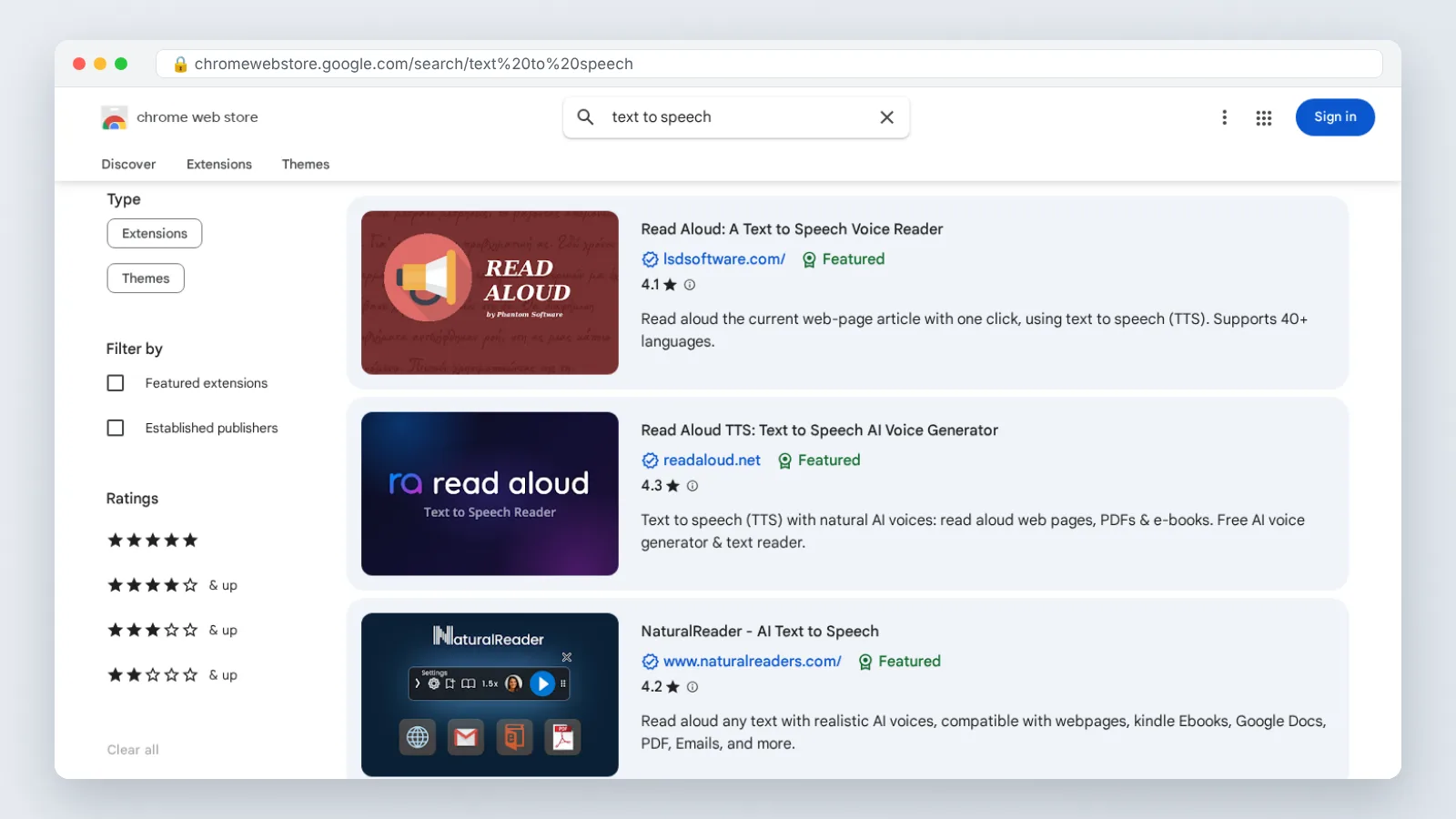
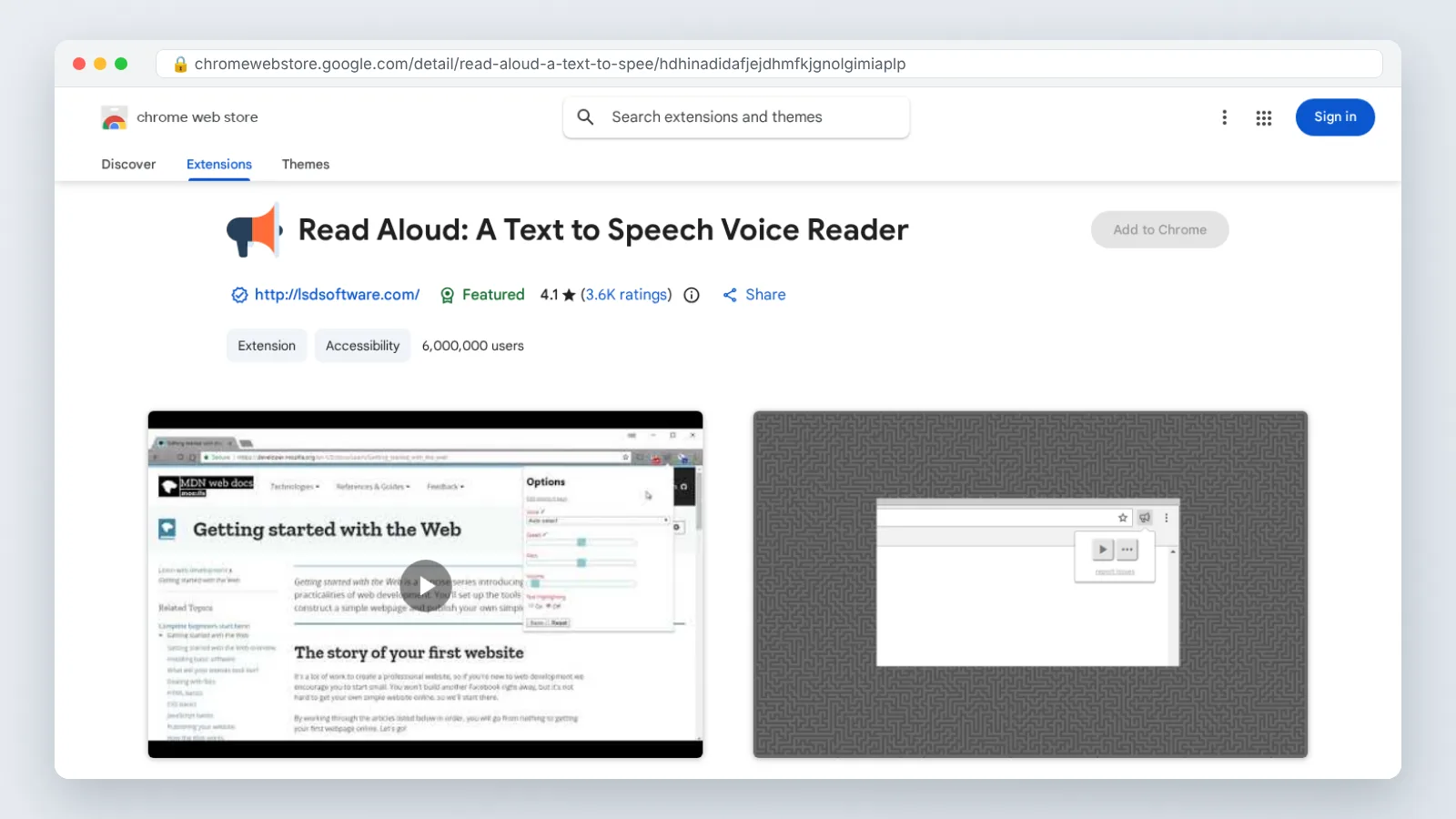
The free extension Read Aloud: A Text to Speech Voice Reader reads the current web-page article with one click and supports 40+ languages, according to its Chrome Web Store listing. Multilingual teams should start there before paying for anything.
Step 3 — Check the real cost: free tiers, character caps and subscription pricing
Time: 15 minutes. What you need: a rough estimate of your weekly reading volume.
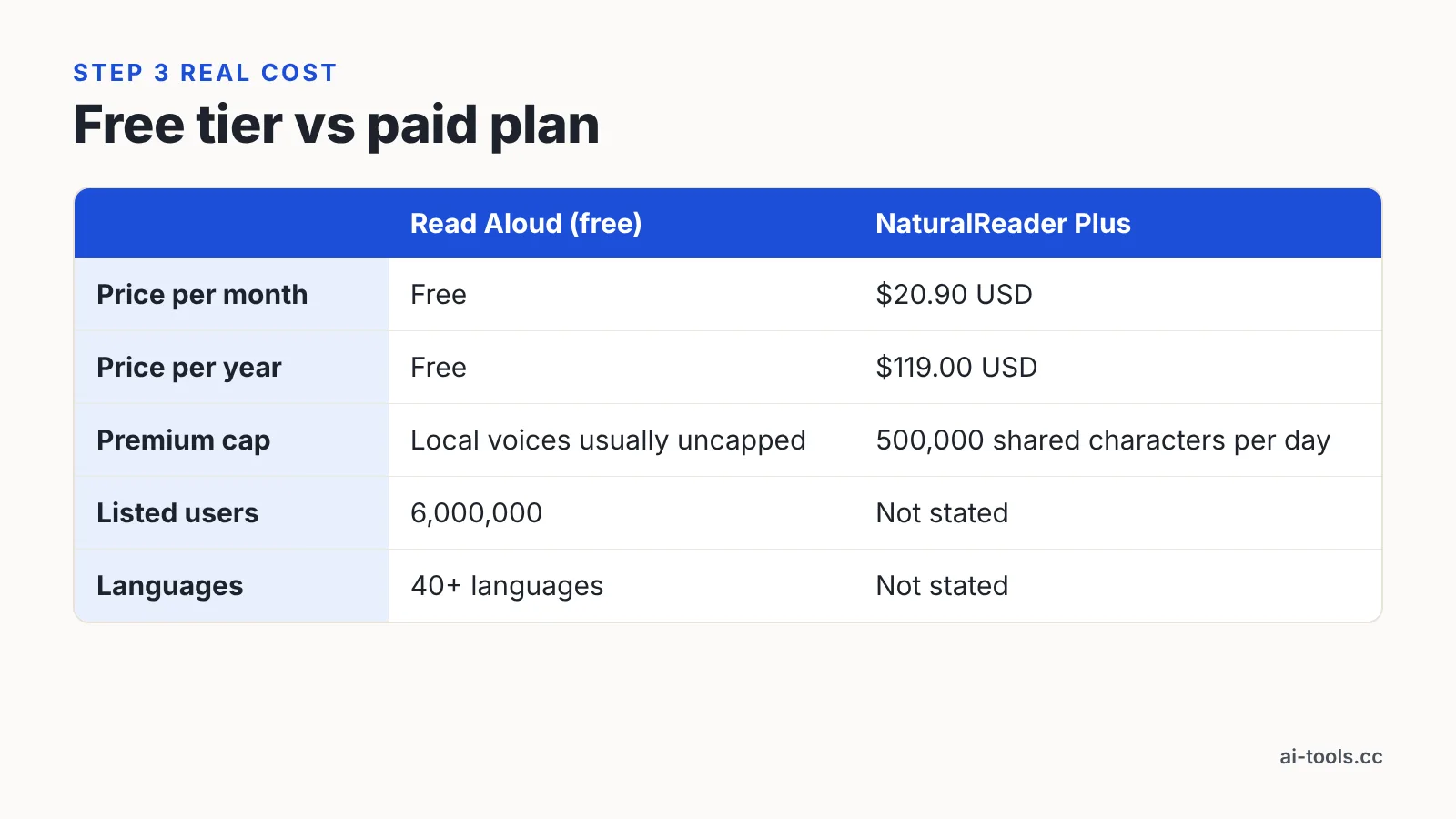
Free tiers rarely limit time; they limit characters processed through premium cloud voices. Local operating-system voices are usually uncapped because your machine does the work. That is the single distinction that decides whether a free tier survives contact with your workload.
NaturalReader’s official help centre prices its Plus plan, which includes the Chrome extension, at $20.90 USD per month or $119.00 USD per year. The annual figure is the one to compare against per-seat budgets.
NaturalReader’s help centre also caps premium-voice listening on the Plus plan at 500,000 shared characters per day. Translate caps like that into pages: a long-form article typically runs several thousand characters, so a daily cap in the hundreds of thousands covers normal reading and chokes only on bulk document processing.
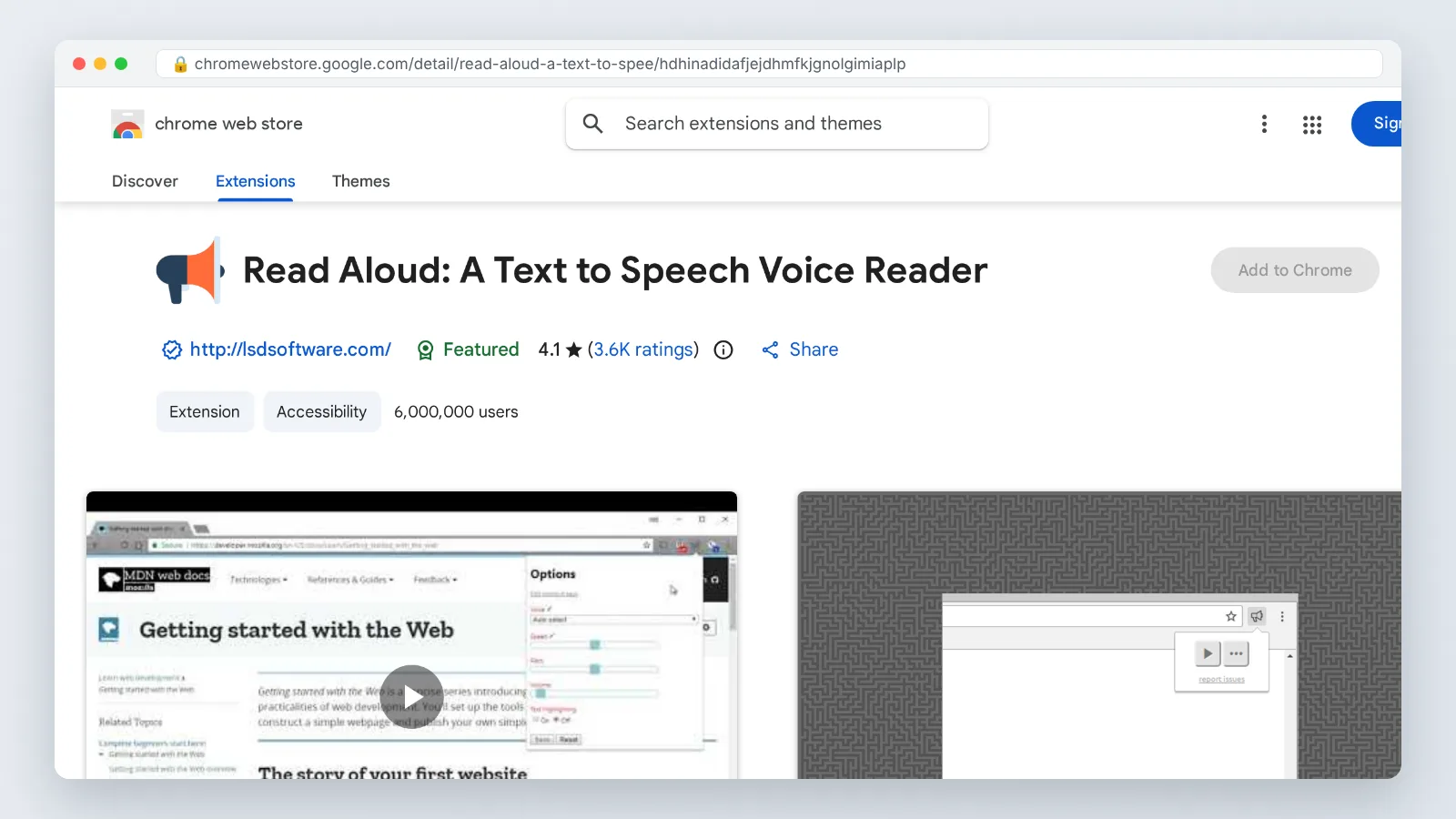
The Chrome Web Store lists Read Aloud: A Text to Speech Voice Reader with 6,000,000 users, which tells you a free tool with OS voices satisfies an enormous share of demand. Run the free option for a week before you approve a paid seat. Buy the subscription only when a specific limit blocks a specific job — PDF reading, offline playback or a voice you can tolerate for hours.
Step 4 — Install, pin to the toolbar and grant only the permissions you need
Time: 5 minutes. What you need: admin rights, or your IT team’s allowlist process.
Install from the Chrome Web Store, never from a third-party download page. Open the extension’s store listing and read the permissions block before you click Add to Chrome. Reading-aloud tools legitimately need access to page content, so "read and change all your data on websites you visit" is expected — the question is whether the vendor explains why.
Pin the icon straight away. Click the puzzle-piece icon in the toolbar, find the extension, and click the pin so the control is one click from any page. An unpinned reader gets abandoned within a week.
Tighten site access if your work involves confidential pages. Right-click the extension icon, open "This can read and change site data", and switch from "On all sites" to "On click" so the extension only activates when you ask it to. That setting protects internal dashboards, client portals and your email from unnecessary content access.
For a team rollout, hand the permissions screenshot and the vendor’s privacy policy to whoever owns security review. Approval before deployment is faster than removal after an incident.
Step 5 — Tune voice, playback speed, highlighting and keyboard shortcuts
Time: 15 minutes. What you need: one article you have already read, so errors are obvious.
Start at the default rate of 1.0, which Chrome’s chrome.tts reference documents as normally around 180 to 220 words per minute. Raise it in small increments over several days rather than jumping to 2x on day one. Comprehension catches up with speed faster than most people expect, but not instantly.
Pick a voice by listening to a full paragraph, not a two-word demo. Numbers, acronyms and proper nouns are where synthetic voices fall apart, so test a paragraph containing all three.
Turn on sentence highlighting if your extension offers it, then decide within a day whether it helps or distracts. Readers proofing their own copy almost always keep it; commuters listening with the screen off should switch it off to save battery.
Set keyboard shortcuts last. Open chrome://extensions/shortcuts, assign play/pause and skip-sentence to combinations you do not already use, and write them somewhere your team can find. Skip-sentence is the shortcut that matters most, because it rescues you from a mispronounced paragraph without breaking your flow.
Quick checklist before you roll it out to your team
Run through this before anyone else installs the extension:
- ☐ The listening job is written in one line — articles, PDFs, Docs or accessibility support.
- ☐ Extraction starts at the headline on both of your test pages.
- ☐ Every language your team reads is on the supported list.
- ☐ The voice stays clear at the speed you actually plan to use.
- ☐ Any character cap has been compared against a typical week of reading.
- ☐ Pricing is checked per seat and per year, not per month only.
- ☐ Permissions have been reviewed, and site access is set to "On click" for sensitive work.
- ☐ The icon is pinned to the toolbar on every machine.
- ☐ Play/pause and skip-sentence shortcuts are assigned and documented.
- ☐ Chromebook users have tested Select-to-speak first, under Settings, then Accessibility, in the Text-to-Speech section, as Google’s Chromebook Help documents.
- ☐ One colleague has used it for a full working week before procurement signs anything.
Send the checklist with the install link, not after it. Rollouts fail on the small items — unpinned icons, unassigned shortcuts, nobody told about the daily cap — rather than on the choice of vendor.
Common mistakes when choosing and setting up a text-to-speech Chrome extension
The most common failure is buying on voice count. A listing advertising a thousand voices still gives you one voice you will tolerate for an hour, and you only find that out by listening to a long paragraph. Shortlist on the voice you will actually use, then check that the language coverage matches your team’s reading list.
Second mistake: testing on a clean page. Try your candidate on a news site stacked with newsletter pop-ups and related-article widgets, because that is where weak extraction reads you three ad headlines before the first sentence.
Third: ignoring the speed ceiling of the specific voice. Chrome’s chrome.tts reference notes that individual voices may cap the usable speaking-rate range tighter than the API’s own limits, so a voice can distort well before the extension’s slider runs out.
Fourth: granting all-sites access on a machine that opens client portals and internal dashboards daily. Switch to "On click" and nothing breaks except habits.
Fifth: approving a paid plan before anyone has hit a free-tier limit. Let the free tool fail at a named task first — PDFs, offline listening, a missing language — then buy the thing that fixes it.
Frequently asked questions
Does Chrome already have text-to-speech built in?
Google documents the built-in "Listen to this page" mode only for Android devices, where it offers Standard playback or AI playback. On ChromeOS, Google’s Chromebook Help documents Select-to-speak under Settings, then Accessibility, in the Text-to-Speech section. Windows and macOS users still need an extension.
How fast can a text-to-speech Chrome extension read?
Chrome’s chrome.tts API reference documents 1.0 as the default speaking rate, normally around 180 to 220 words per minute, with 2.0 twice as fast. The API disallows rates below 0.1 or above 10.0, and individual voices may cap the range tighter.
Is a free text-to-speech extension good enough for work?
For plain web articles, usually yes. Read Aloud: A Text to Speech Voice Reader is listed in the Chrome Web Store with 6,000,000 users, reads the current article with one click and supports 40+ languages. Pay only when PDFs, offline use or voice quality block a specific task.
Which extensions read PDFs and Google Docs, not just web pages?
Speechify’s Chrome Web Store listing states that it reads Google Docs, PDFs, web pages and books aloud in 1000+ voices across 60+ languages at up to 4.5x speed. Test any such claim on your own documents, since scanned PDFs without a text layer often fail.
What does a paid text-to-speech plan typically cost?
NaturalReader’s official help centre prices its Plus plan, which includes the Chrome extension, at $20.90 USD per month or $119.00 USD per year, and caps premium-voice listening on that plan at 500,000 shared characters per day. Compare caps against your weekly reading before approving seats.
Sources
- chrome.tts API reference — Chrome for Developers
- Read Aloud: A Text to Speech Voice Reader — Chrome Web Store
- Speechify — Text to Speech — Chrome Web Store
- Plans & Pricing (Personal Version) — NaturalReader Help Centre
- Use Listen to this page mode in Chrome — Google Chrome Help
- Hear text read aloud — Chromebook Help
This article was drafted with AI assistance and published by the AI Tools Editorial Team after its facts were checked against the sources listed above.