Pick a hosted TTS bot, invite it with the bot and applications.commands scopes, give it Connect and Speak in one voice channel, run its setup command, then lock down voices, character limits and role access.
What a Discord text-to-speech bot does (and when built-in /tts is enough)
Discord already ships a native command. Type `/tts` followed by your message and the client reads it aloud for members who have text-to-speech playback switched on. The audio renders locally, on each person’s own device.
A TTS bot behaves differently. It joins a voice channel, synthesizes audio on its own infrastructure, and streams one shared track that everyone in the channel hears at the same moment. That single difference drives almost every setup decision below.
According to Discord’s developer documentation, the message object includes a dedicated boolean field called "tts" that records whether a message was sent as a text-to-speech message. That flag is what the native command sets, and it is why native TTS stays tied to text channels rather than voice.
| Factor | Built-in /tts | TTS bot in a voice channel |
|---|---|---|
| Who hears it | Each member with TTS enabled, per device | Everyone connected to the voice channel |
| Voice options | System voice only | Multiple voices, languages, speeds |
| Works while you’re gaming | Depends on each member’s own client setup | Yes, audio mixes with voice chat |
| Setup effort | None | About 1–1.5 hours for a careful first pass |
Every time figure in this guide, including the one in the table above, is an editorial estimate for a first-time setup rather than a number published by Discord.
Use the built-in command when you need occasional accessibility help in a small, trusted server. Use a bot when mic-less members want to talk during voice sessions, when you run multilingual communities, or when you want moderation controls.
Step 1 — Choose the right TTS bot for your server
Time: 20–30 minutes. You need: Manage Server permission, a rough headcount, and a list of languages your members actually speak.
Shortlist two or three bots and judge them against fixed criteria instead of star ratings. Voice quality matters less than reliability if your server runs nightly voice sessions.
Score each candidate on:
- Voice catalog — how many distinct voices and languages, and whether per-user voice assignment exists
- Hosting model — public hosted bot (fast) versus self-hosted open source (full control, requires a server)
- Permission granularity — can you restrict TTS to one channel and one role
- Moderation tools — character caps, blocked words, mute commands for individual members
- Command surface — slash commands rather than legacy message prefixes
- Uptime history — check the bot’s own support server for outage posts
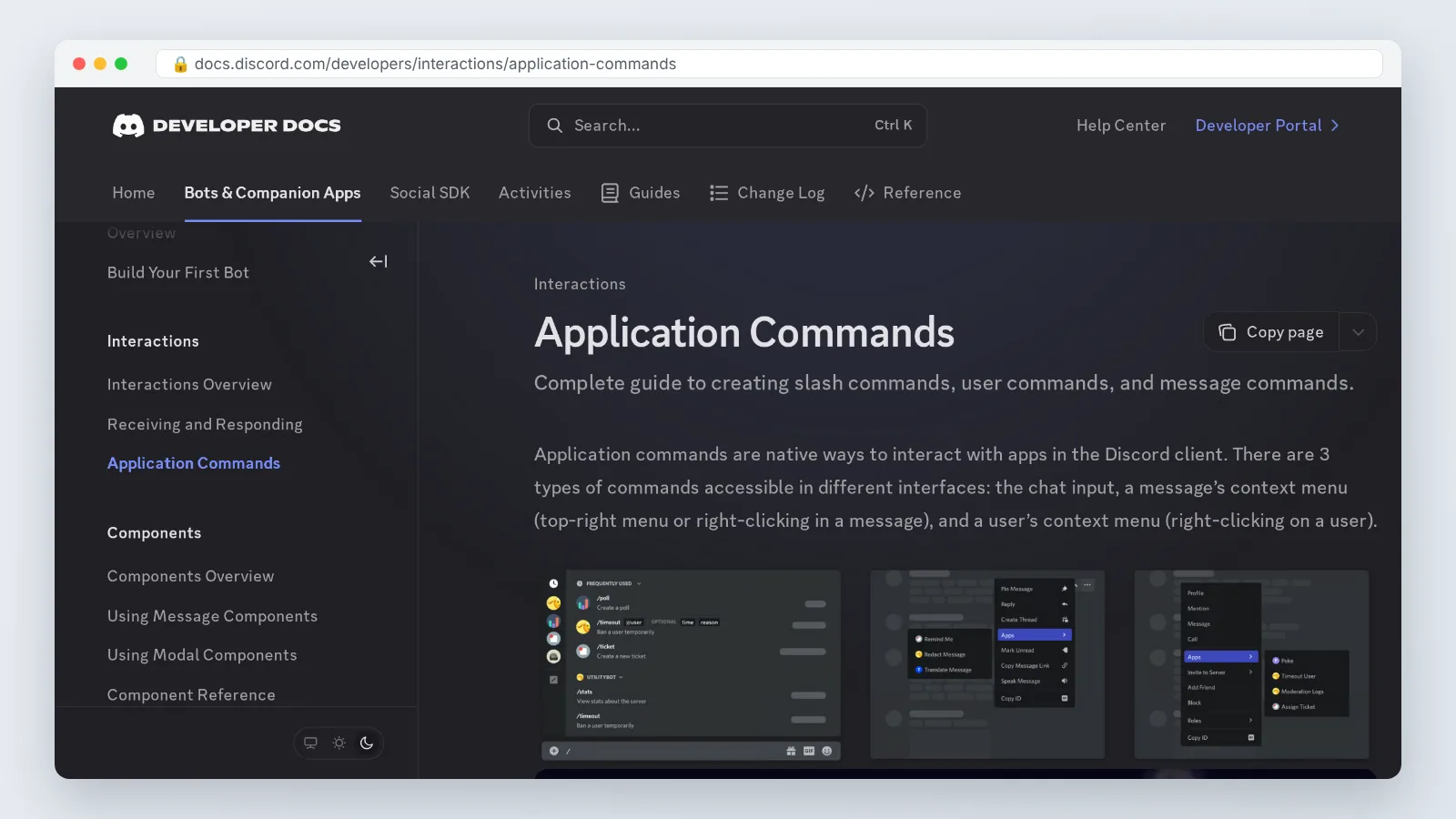
Discord’s developer documentation states that Discord supports 3 types of application commands: chat input (slash) commands, message context-menu commands and user context-menu commands. A bot that registers proper slash commands will show up in the command picker with descriptions, which cuts onboarding questions from members who never read pinned instructions.
Ask one more question before deciding: does the bot read every message in a designated channel automatically, or does it require a command per message? Auto-read channels feel natural for mic-less members. Command-only bots are safer for large public servers.
Step 2 — Invite the bot and set its permissions and roles
Time: 5–10 minutes. You need: the Manage Server permission on the target server and the bot’s official invite link.
Open the invite link from the bot’s own website or its listing page, never from a random reshare. Select your server, then review the permission screen instead of clicking through it. The scopes you want are `bot` and `applications.commands`.
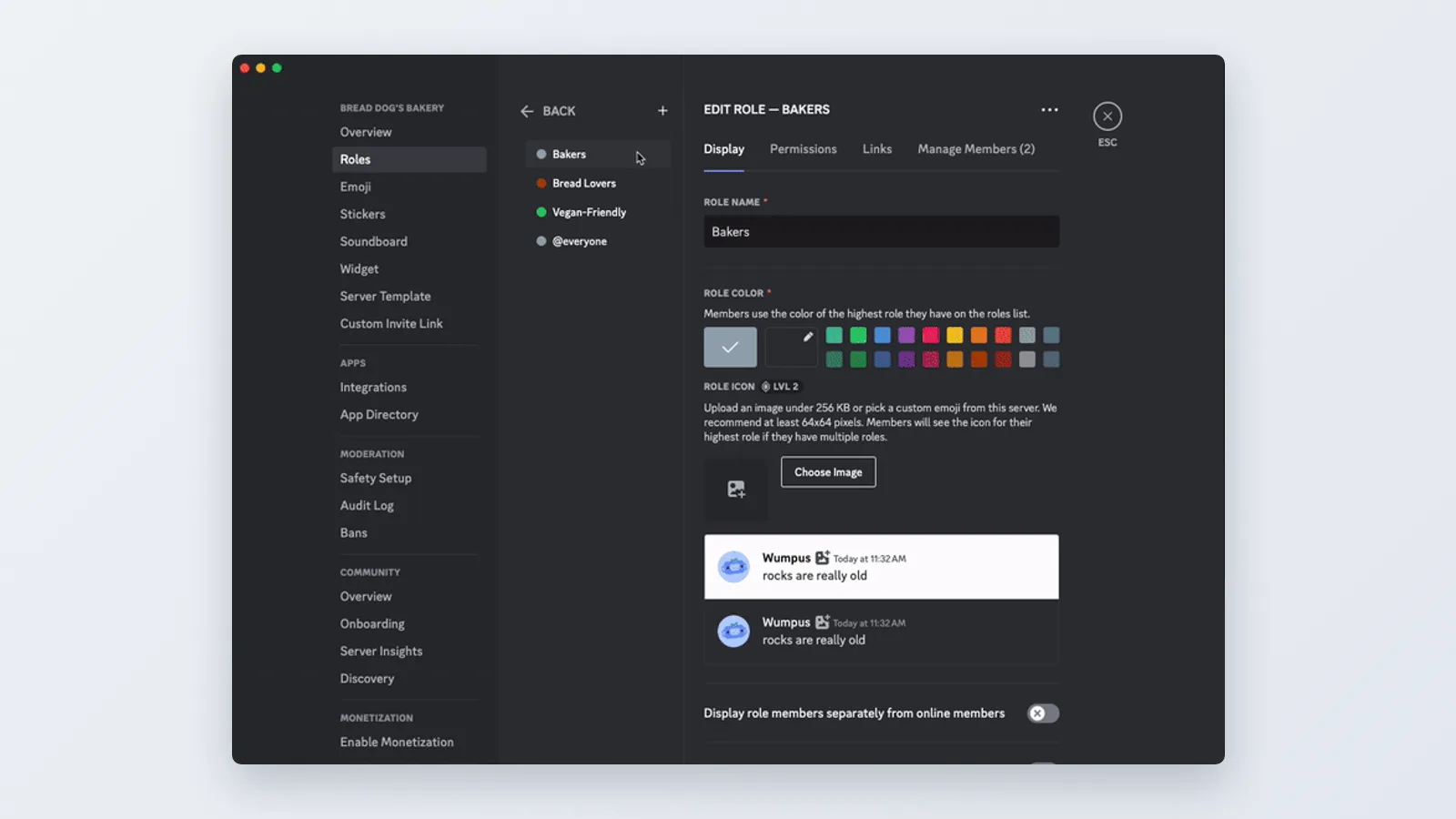
Grant the minimum set that still works: View Channel, Send Messages, Read Message History, Connect, Speak, and Use Voice Activity. Deny anything touching Manage Server, Manage Roles, or Administrator. A speech bot has no business managing your moderators.
Role position decides more than the permission checkboxes. Drag the bot’s auto-created role above the roles that carry channel overwrites, then open the target voice channel’s permission tab and confirm Connect and Speak show as explicit green checkmarks for that role.
Create a dedicated `#tts-text` channel at this point. Restrict the bot’s Send Messages permission to that channel so its confirmations never clutter your announcements or support channels.
Step 3 — Connect the bot to a voice channel and send your first TTS message
Time: 5 minutes. You need: headphones, one teammate in the voice channel as a second listener.
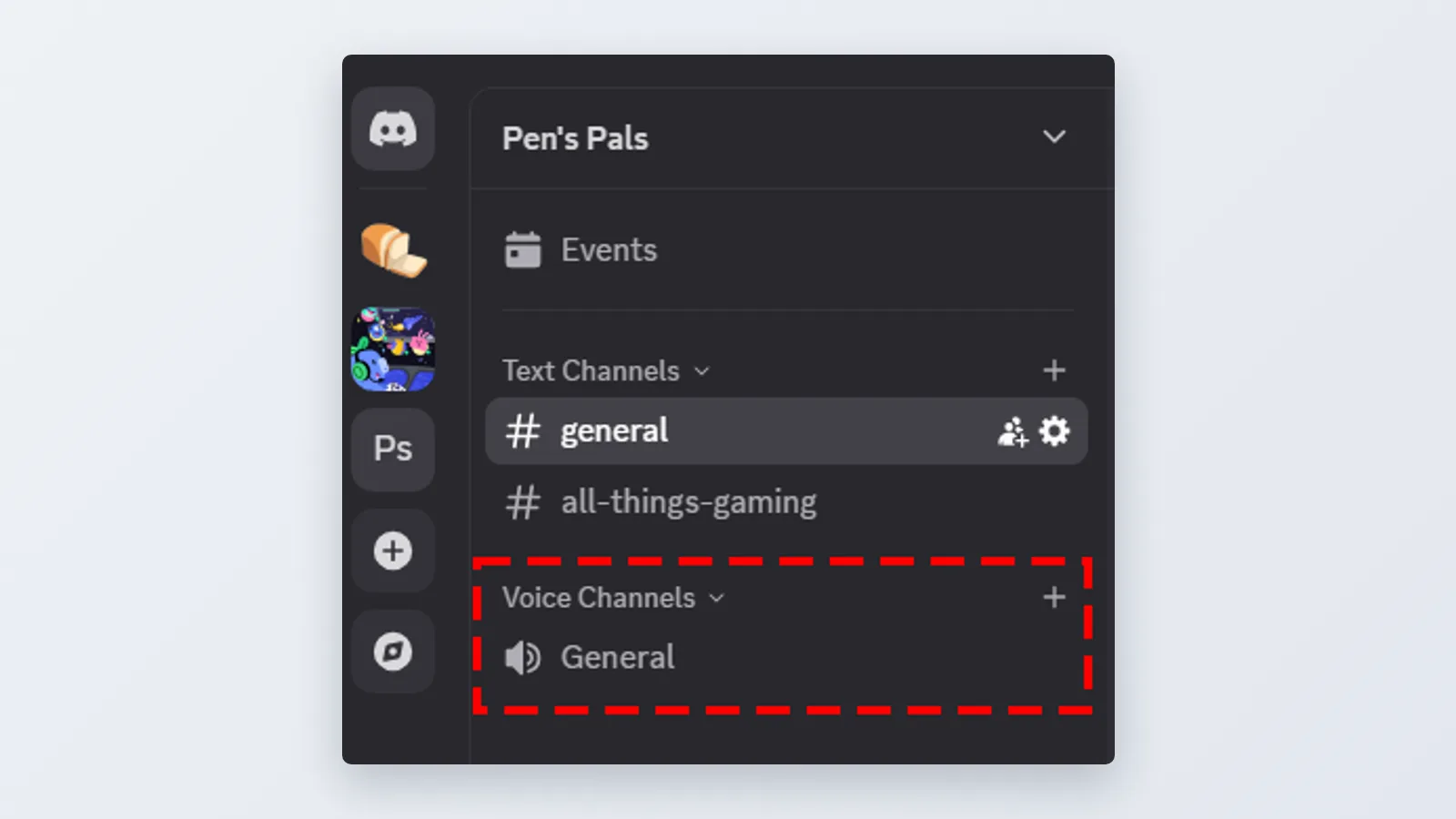
Join the voice channel yourself first. Most bots use a summon command such as `/join` or `/tts join`, and they attach to the channel you are already sitting in rather than asking you to name it.
Type a short test line next — something like "testing one two three" — in the text channel the bot watches. Keep your first script under twenty words so you can hear clipping, lag or wrong-language pronunciation immediately.
Discord’s developer documentation notes that the description of a chat input (slash) command, such as a TTS bot’s /say command, must be 1-100 characters long. That constraint is why bot command descriptions read like fragments, and it is a quick sanity check that the bot registered its commands correctly rather than falling back to a text prefix.
Per Discord’s developer documentation, a bot replying to a slash command can have its interaction response read aloud, because the interaction response message object exposes an optional "tts" boolean. Some bots use that behavior for confirmations, which can double up with the voice-channel audio.
Disconnect with `/leave` once the test passes. A bot left sitting idle in voice confuses members who join later and makes it harder to tell whether it is actually working.
Step 4 — Configure voices, languages, speed and per-user settings
Time: 15–20 minutes. You need: your shortlist of member languages and a quiet room for listening tests.
Set the server default first, then let individuals override it. A typical configuration flow looks like this:
- `/settings voice` — pick the server-wide default voice
- `/settings language` — set the default language for parsing and pronunciation
- `/settings speed` — slow the rate slightly if members use the bot for accessibility
- `/voice set` — let each member choose their own voice so listeners can tell speakers apart
- `/nickname set` — shorten long usernames the bot reads before every message
Per-user voices are the single highest-value setting in this list. When four people share one synthesized voice in a raid or a standup, nobody knows who said what.
Build a substitution dictionary for terms the engine mangles. Product names, in-game abbreviations and your company’s acronyms usually need manual spellings — map "SDR" to "ess dee arr" and "q4" to "quarter four" so the audio stays readable.
Turn off the reading of URLs, emoji names and code blocks. Nothing kills a voice session faster than a bot spelling out a link character by character; a 60-character URL works well as the test string for that setting.
Step 5 — Add moderation limits, then test with your team
Time: 20 minutes. You need: three volunteers, one of whom deliberately tries to break the bot.
Limits come before launch, not after the first incident. As a recommended starting setting rather than a documented Discord limit, set a per-message character cap around 200 characters, enable the blocked-word list, and restrict TTS to a single role you can revoke from one person without disabling the feature for everyone.
Add a cooldown of a few seconds between messages per user. Spam protection matters most in public servers where anyone can join with an unverified account.
Discord’s developer documentation states that a single interaction response from a Discord bot supports up to 10 embeds, which is why a well-built TTS bot can show its full settings panel in one `/settings` reply rather than spraying several messages into your channel.
Run the stress test with your volunteers: overlapping messages, a long paste (500 characters is a useful test value), a blocked word, a non-Latin script, and a member who lacks the TTS role. Write down which of the five attempts produced the wrong behavior.
Fix the configuration, then repeat the same five attempts. Only announce the bot after a clean second pass.
Pre-launch checklist: what to verify before you announce the bot
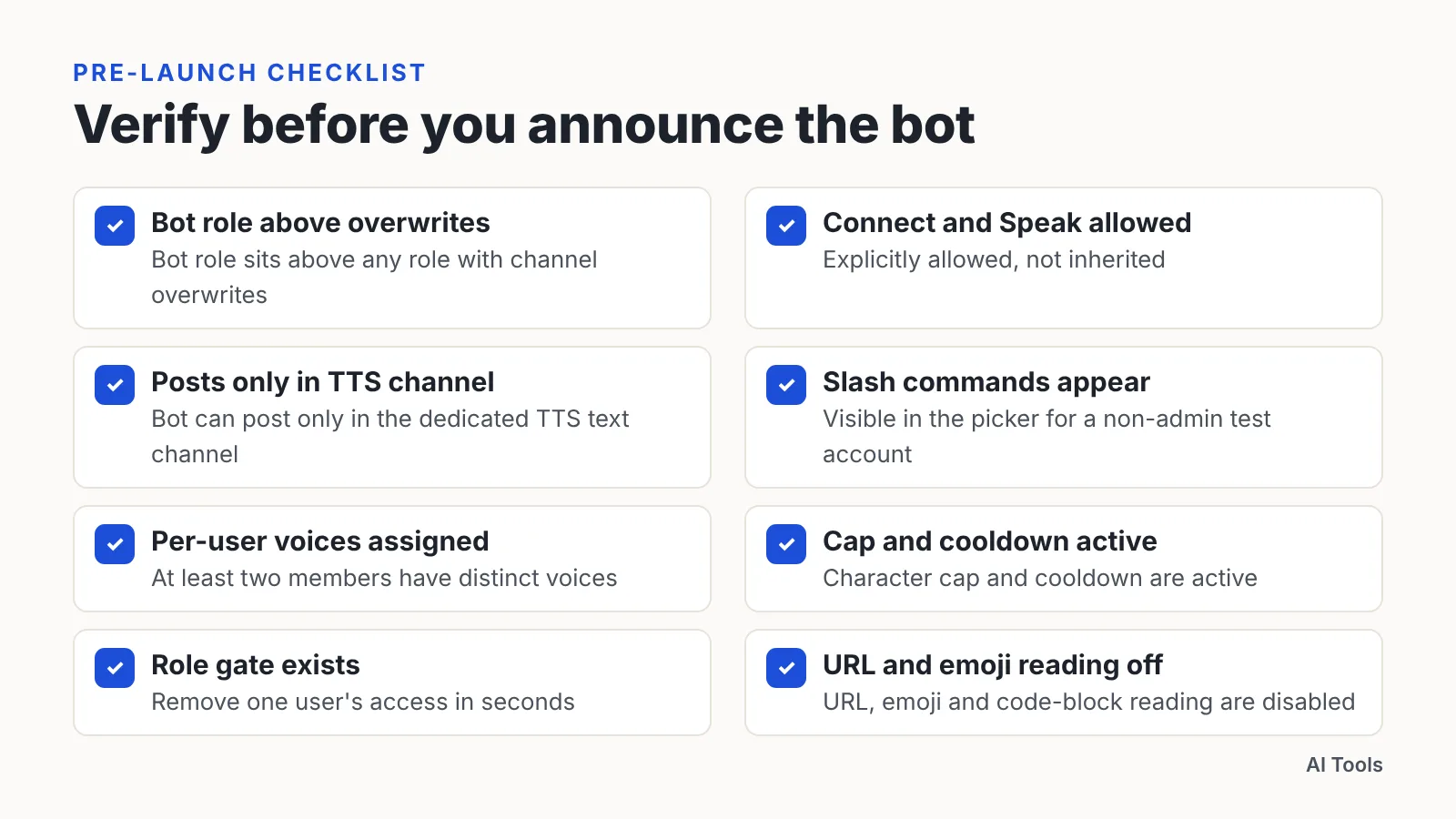
Run through every line below before you post in your announcements channel. Each item maps to a failure that moderators report after launch.
- [ ] Bot role sits above any role with channel overwrites in the target voice channel
- [ ] Connect and Speak are explicitly allowed, not inherited
- [ ] Bot can post only in the dedicated TTS text channel
- [ ] Slash commands appear in the picker for a non-admin test account
- [ ] Server default voice, language and speed are set
- [ ] At least two members have distinct per-user voices assigned
- [ ] Character cap and cooldown are active
- [ ] Blocked-word list includes your server’s existing filter terms
- [ ] A role gate exists so you can remove one user’s access in seconds
- [ ] URL, emoji and code-block reading are disabled
- [ ] Someone other than you knows how to run `/leave` if audio breaks
- [ ] The bot’s support server link is pinned where moderators can find it
Write a four-line usage note for members: which channel, which command, which role to request, and who to ping. Pin it in the TTS channel rather than burying it in a rules document nobody opens.
Common mistakes when setting up a Discord TTS bot (and how to fix them)
The failure you will almost certainly hit is a silent bot. It joins the voice channel, reports success in text, and plays nothing. The cause is a permission overwrite on that specific channel denying Speak to a role the bot inherits — fix it by opening the channel’s permission tab and setting Speak to an explicit allow on the bot’s own role, then reconnecting.
Second mistake: expecting a corrected typo to replay. Discord’s developer documentation confirms that editing a message never re-triggers text-to-speech, because Discord always sends tts as false in message update events. Send a new message instead of editing the old one.
Third: granting Administrator to skip permission debugging. That hands a third-party service full control of your server, and it hides the real misconfiguration until it bites you during a live event.
Fourth: launching without a role gate. One member reading copypasta aloud for ten minutes forces you to kick the bot entirely, which punishes everyone. A revocable role turns that incident into a ten-second fix.
Fifth: no fallback. Keep the native `/tts` command available for accessibility users so a bot outage does not remove their only way to participate.
Frequently asked questions
Is Discord’s built-in /tts command the same as a TTS bot?
No. The built-in command sets a flag on the message so each member’s own client speaks it locally, while a bot joins a voice channel and streams one shared audio track that every connected listener hears simultaneously.
Which permissions does a Discord text to speech bot actually need?
View Channel, Send Messages, Read Message History, Connect, Speak and Use Voice Activity cover nearly every TTS bot. Never grant Administrator or Manage Roles — a speech bot has no reason to modify your server structure.
Why does my TTS bot join the voice channel but play no sound?
A channel-level permission overwrite is usually denying Speak or Connect to the bot’s role. Set both to an explicit allow on the bot’s own role, move that role above conflicting roles, then disconnect and reconnect the bot.
Can I fix a typo by editing the message so the bot reads it again?
No. Discord’s developer documentation confirms that editing a message never re-triggers text-to-speech, because Discord always sends tts as false in message update events, so you must post a new message to hear the corrected line.
How long does it take to set up a TTS bot properly?
Budget about 1–1.5 hours for a careful first pass: 20–30 minutes comparing bots, 5–10 minutes on the invite and permissions, 5 minutes for the first voice test, 15–20 minutes on voice settings, and 20 minutes on moderation limits and team testing. These are editorial estimates, not figures published by Discord.
Sources
This article was drafted with AI assistance and published by the AI Tools Editorial Team after its facts were checked against the sources listed above.