An ai that takes video and makes notes works in two stages: it transcribes audio with per-second timestamps, then turns that transcript into decisions, owners and MM:SS references you can verify.
Quick steps
The whole job takes about 25 minutes for a one-hour recording — roughly 7 minutes around capture, 3 to prompt, 10 to check and 5 to ship — plus a one-time 10 minutes to choose your tool. You need three things: the video file or link, a transcript with timestamps, and a tool with a context window big enough to hold both.
- Turn on recording and transcription before the session starts — not halfway through.
- Export the transcript as a timestamped file (VTT, SRT or the platform’s own transcript view) next to the video.
- Paste both into your notes tool and ask for decisions, owners and open questions, each tagged with MM:SS.
- Open the recording at three cited timestamps and confirm the names, numbers and decisions match.
- Push the action items into your tracker, then save the prompt as a reusable template.
Skip step 1 and everything downstream degrades. A tool can only summarize what it was allowed to hear, which is why the capture settings matter more than the model you pick. The five detailed steps below follow this same order, with timing and prerequisites for each.
What "AI that takes video and makes notes" actually does — transcript first, notes second
Two separate systems are running. One converts speech to text and attaches a clock reference to each segment; the second reads that text and writes structured notes. Almost every failure you will see traces back to the first system, not the second.
Microsoft documents that intelligent recap only works when meeting transcription and recording are enabled, which confirms that AI notes are generated from the transcript rather than from the raw video. In Teams, then, the notes can never be richer than the transcript they are built from.
Visual understanding is a third, optional layer. Google’s Gemini API documentation states that each second of video costs 263 tokens under static processing, so a one-hour lecture carries a predictable, duration-proportional cost when you send the actual footage instead of just the words.
What this means for you:
- Audio quality sets the ceiling. A crosstalk-heavy call produces mushy notes no matter which model reads it.
- Timestamps come from the transcript layer. If your export has no time markers, the notes cannot cite any.
- Slides, charts and screen shares need the video. Transcript-only tools will miss a number that was shown but never spoken.
Step 1 — Capture or export the video with a clean, timestamped transcript
Time: 5 minutes before the session, 2 minutes after. Prerequisites: recording rights, consent from participants, storage.
Set recording and live transcription to start automatically in your meeting platform’s admin settings. Announce the recording at the top of the call. Ask people to use headsets, because a laptop mic in a conference room flattens three voices into one unlabeled speaker.
After the session, export two files: the video (MP4) and the transcript (VTT or SRT). Keep the timestamps — some export options strip them into plain prose, which destroys the one thing that makes the notes checkable.
On the Gemini API free tier, you cannot submit more than 8 hours of YouTube video per day, according to Google’s video understanding documentation, while the paid tier has no video-length limit. Plan long lecture backlogs around that if you are batching.
Store the pair in one folder per session, named YYYY-MM-DD-topic. If your team keeps recordings in cloud storage, the connection rules matter — this guide to connecting Google Drive with an AI tool safely covers the permission scopes to check before you grant access to a shared drive.
Step 2 — Pick the right tool for your video type: meeting, lecture, webinar or screen recording
Time: 10 minutes once, then reuse the decision. Prerequisites: a sample recording of each type.
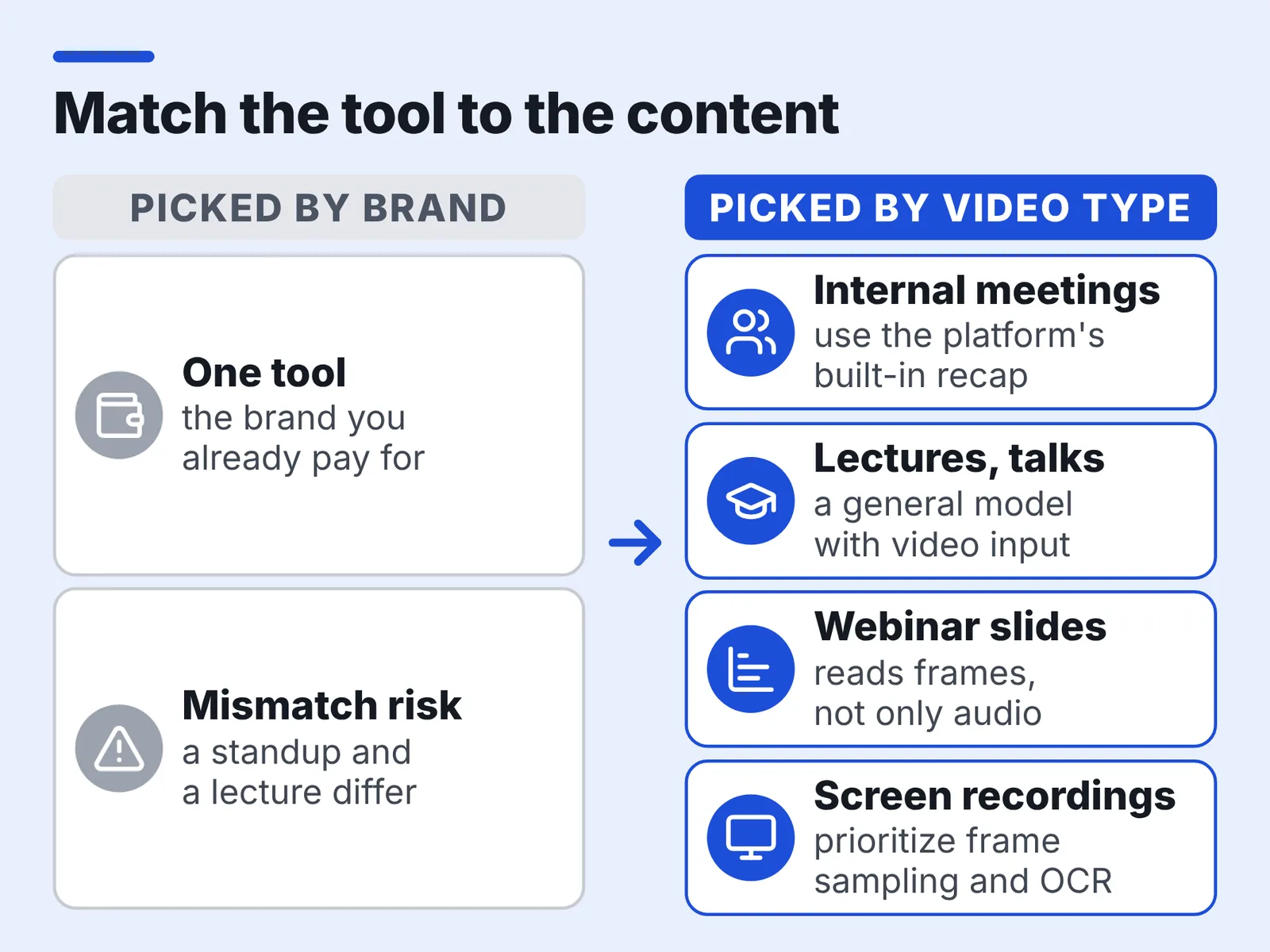
Match the tool to the content, not to the brand you already pay for. A 12-person standup and a 90-minute recorded lecture stress completely different parts of the pipeline.
- Internal meetings: use the platform’s built-in recap. Microsoft documents that Teams intelligent recap — AI notes, tasks and timeline markers — requires each user to hold either a Teams Premium or a Microsoft 365 Copilot license.
- Lectures and conference talks: use a general model with video input. Google’s documentation notes that Gemini models with a 1M-token context window can process videos up to 1 hour long at default media resolution, or up to 3 hours at low media resolution.
- Webinars with slides: pick a tool that reads frames, not only audio, so chart values survive.
- Screen recordings and demos: prioritize frame sampling and OCR of on-screen text over speaker labeling.
For long, mostly static videos such as recorded lectures, Google’s documentation recommends setting a custom frame rate below 1 FPS, which cuts token cost without losing the talk track. Customer-facing teams running the same process at scale will find overlapping tactics in this breakdown of how AI supports customer success from health scores to QBR prep.
Step 3 — Prompt for structured notes that cite timestamps (MM:SS) instead of a generic summary
Time: 3 minutes per video once the prompt exists. Prerequisites: the transcript with time markers.
A bare "summarize this" prompt returns paragraphs you cannot audit. Ask for a shape instead, and demand a timestamp on every claim that matters.
When video is uploaded through the Gemini File API, Google’s documentation states that frames are stored at 1 FPS, audio is processed at 1Kbps single channel, and timestamps are attached every second — which is exactly why the model can point at a moment in time rather than guessing.
Use a prompt close to this:
“`
You are taking notes from a recorded [meeting/lecture].
Output five sections: Decisions, Action items (owner + due date),
Numbers and figures quoted, Open questions, Quotes worth keeping.
Tag every line with a timestamp in MM:SS from the transcript.
If a name, number or owner is unclear in the audio, write UNCLEAR
instead of guessing. Do not merge two speakers into one point.
“`
The UNCLEAR instruction does more work than any other line. It converts silent hallucinations into a short list of things you must verify yourself.
Microsoft Support explains that in Teams, the auto-generated chapters and topics acting as navigable timestamps are built from keywords in the transcript plus content shared through PowerPoint Live — useful context if your webinar deck carries the real numbers.
Step 4 — Spot-check the notes against the recording and fix names, numbers and decisions
Time: 10 minutes per hour of video. Prerequisites: the video open in a player with keyboard seeking.
Check four categories, in this order: proper nouns, figures, commitments, and anything the model marked UNCLEAR. Jump to the cited timestamp, listen for ten seconds, correct or confirm.
By default, Gemini samples video for visual description at a rate of 1 frame per second, according to Google’s documentation, so fast slide changes or quick motion can be missed entirely. Any figure that only ever appeared on a slide deserves a manual look.
Things that break most often:
- Client and product names rendered phonetically ("Acme Ridge" becoming "Acne Ridge").
- Currency and units — a stated "fifteen K" may land as 15 or 15,000.
- Who owns an action, when two people spoke in the same breath.
- Reversed decisions, where the group changed its mind at minute 48 and the notes kept the minute-12 version.
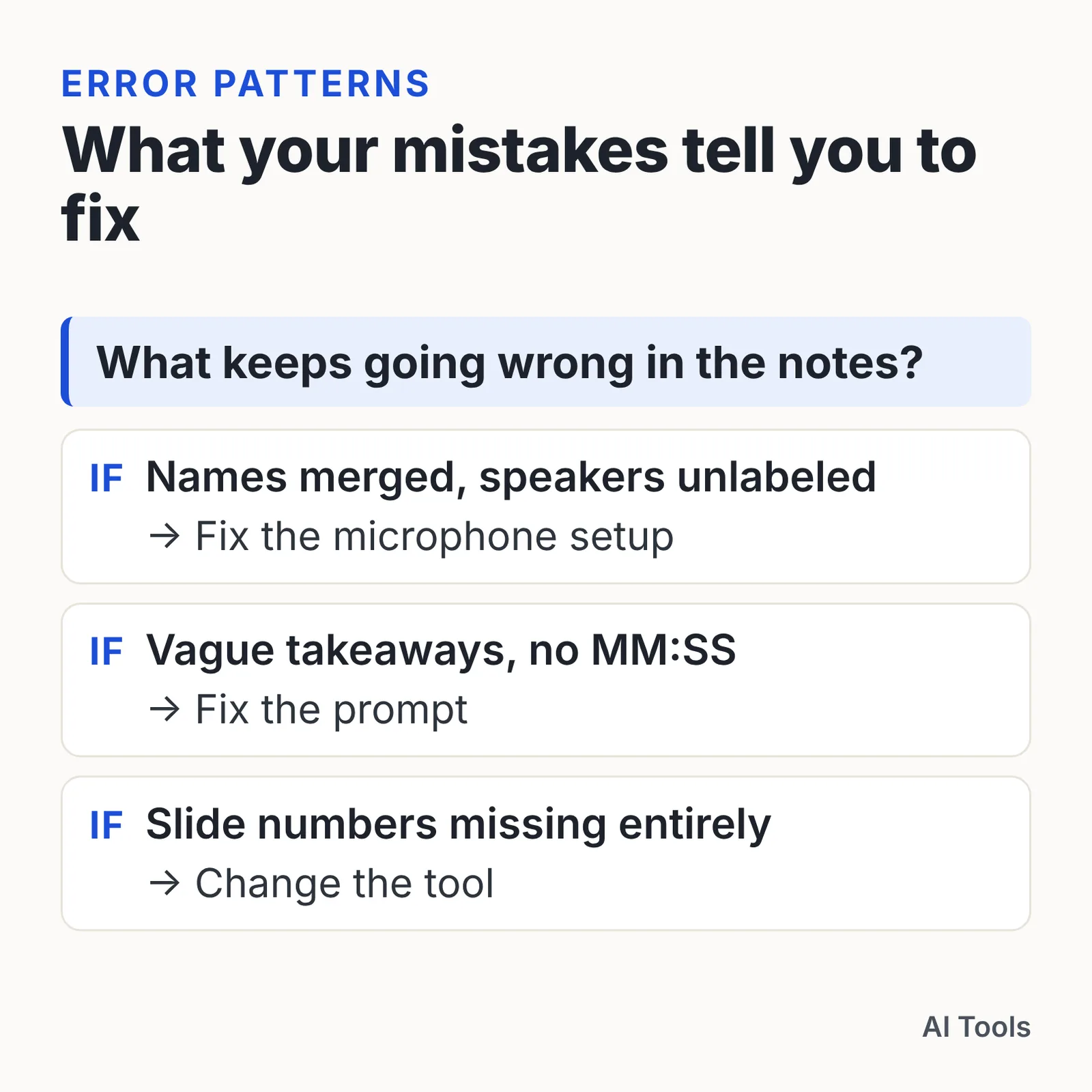
Mark your corrections in bold inside the notes for the first few sessions. The pattern of errors tells you whether to fix the microphone setup, the prompt, or the tool.
Step 5 — Ship the notes into your workflow: tasks, docs and a reusable template
Time: 5 minutes. Prerequisites: a task tracker and one shared doc location.
Notes that live in a chat thread die there. Move each action item into your tracker with the owner, the due date and the MM:SS link back to the recording, so anyone can replay the 20 seconds that created the task.
File the cleaned notes in a single, searchable location rather than per-person folders. If your team is building that habit from scratch, these approaches to AI tools for knowledge management explain how to structure a repository people actually search.
Save your prompt, your section list and your naming convention as a template. Reuse beats cleverness here — identical structure across 40 recordings makes them comparable and searchable.
Some teams turn the recap into a short video for people who skipped the live session. Tools like AI Studios can build a video from a script, a topic prompt, a web URL or an uploaded document, which fits a weekly digest built from your cleaned notes. It generates avatar and script-based videos from text rather than taking notes from a recording, and its Free plan is capped at 3 videos of up to 1 minute each.
Pre-flight checklist before you hit summarize
Run this list before generation, not after. Each item takes seconds and prevents a rewrite.
- ☐ Recording and transcription are both on, confirmed in the UI.
- ☐ Speaker names are mapped, not left as "Speaker 1 / Speaker 2".
- ☐ The transcript export still contains timestamps.
- ☐ Video length fits the tool’s limit for your chosen resolution.
- ☐ Sensitive segments (salary, legal, personal data) are flagged for removal.
- ☐ Your prompt names the output sections and demands MM:SS tags.
- ☐ Someone is assigned to verify the notes within 24 hours.
One scheduling detail catches teams out. If a Zoom host enables automatic meeting summaries in settings, summary generation starts as soon as anyone starts the meeting, even if the host has not joined yet — documented by USC Information Technology Services — so pre-meeting chatter can land in the official notes.
Consent is not optional. Recording and transcription rules differ by jurisdiction: several US states require all-party consent for recording a conversation, while others require only one party, and the EU adds data-protection duties for processing voice data. Check the rule for the state or country your participants are in, and state the purpose of the recording out loud. This is general information, not legal advice.
Common mistakes that ruin AI video notes (and how to avoid them)
The most expensive failure is starting the summarizer late. Zoom AI Companion meeting summaries only cover the portion of a session after the host clicks Start Summary, as Wharton Computing documents, so the first fifteen minutes — where the agenda and the real objections usually live — silently vanish from the notes. Fix it by enabling the summary in account settings so it starts with the meeting, and by announcing it as part of your opening line.
Four more traps worth avoiding:
- Summarizing a transcript with no speaker labels. Decisions get attributed to nobody, and the action list arrives ownerless.
- Asking for "key takeaways" only. You get adjectives. Ask for decisions, numbers and open questions as separate sections.
- Sending a three-hour recording at full media resolution. Split it by agenda item, or drop the frame rate for static content.
- Publishing without a verification pass. One wrong revenue figure in a shared doc costs more trust than the notes saved in time.
Small teams feel these failures hardest because nobody is paid to re-watch recordings. If you are assembling a lean stack around that constraint, this rundown of the AI tools a six-person startup team can actually run shows where note automation fits next to the rest.
Frequently asked questions
Can AI make notes from a video without a transcript?
Some models read video directly, but Google’s documentation notes that Gemini samples video for visual description at 1 frame per second by default, so fast slide changes or quick motion can be missed. Microsoft documents that Teams intelligent recap only works when transcription and recording are enabled, confirming that AI notes are generated from the transcript rather than the raw footage. Always export the transcript alongside the video.
How long can a video be before the AI stops handling it well?
Google’s documentation states that Gemini models with a 1M-token context window can process videos up to 1 hour at default media resolution, or up to 3 hours at low media resolution. For anything longer, split the recording by agenda item or chapter.
Why do the timestamps in my AI notes point to the wrong moment?
Usually the transcript was exported without time markers, or the summarizer started late. Zoom AI Companion summaries only cover the portion of a session after the host clicks Start Summary, according to Wharton Computing, so earlier content is missing entirely.
How much does it cost to process a one-hour lecture?
Costs scale with duration. Google’s Gemini API documentation states that each second of video costs 263 tokens under static processing, so a one-hour lecture is predictable. Google also recommends a custom frame rate below 1 FPS for long, mostly static recordings to cut tokens.
Will the AI catch numbers that only appear on a slide?
Not reliably. Google’s documentation notes that Gemini samples video for visual description at 1 frame per second by default, so fast slide changes can be missed. Verify every figure that was shown but never spoken aloud against the recording.
Sources
- Understand and count tokens | Gemini API | Google AI for Developers
- Video understanding | Gemini API | Google AI for Developers
- Video understanding | Gemini API | Google AI for Developers
- Video understanding | Gemini API | Google AI for Developers
- Video understanding | Gemini Enterprise Agent Platform | Google Cloud Documentation
- Intelligent recap for calls and meetings in Microsoft Teams | Microsoft Learn
- Data, privacy, and security for intelligent recap in Microsoft Teams | Microsoft Learn
- Recap in Microsoft Teams | Microsoft Support
- Zoom AI Companion — Wharton Computing (University of Pennsylvania)
- How To: Use Zoom AI Companion and Meeting Summary | USC Information Technology Services
This article was drafted with AI assistance and published by the AI Tools Editorial Team after its facts were checked against the sources listed above.